Using the platform, shift by shift
For operators, supervisors and reviewers.
Version 1.1.834, updated 8 November 2026. The full steps are in the operator guide.
Signing in
- Enter your Username or email and password, then press Sign in.
- Tick Keep me signed in on your own computer only.
- With two-step sign-in, enter the code from the app on your phone, then press Continue.
- A wall screen uses a display account: it can look, but not act.
- Press Wall screen on the Monitor for a second screen that shows the wall alone.
Version 1.1.834Operator training
The Monitor wall
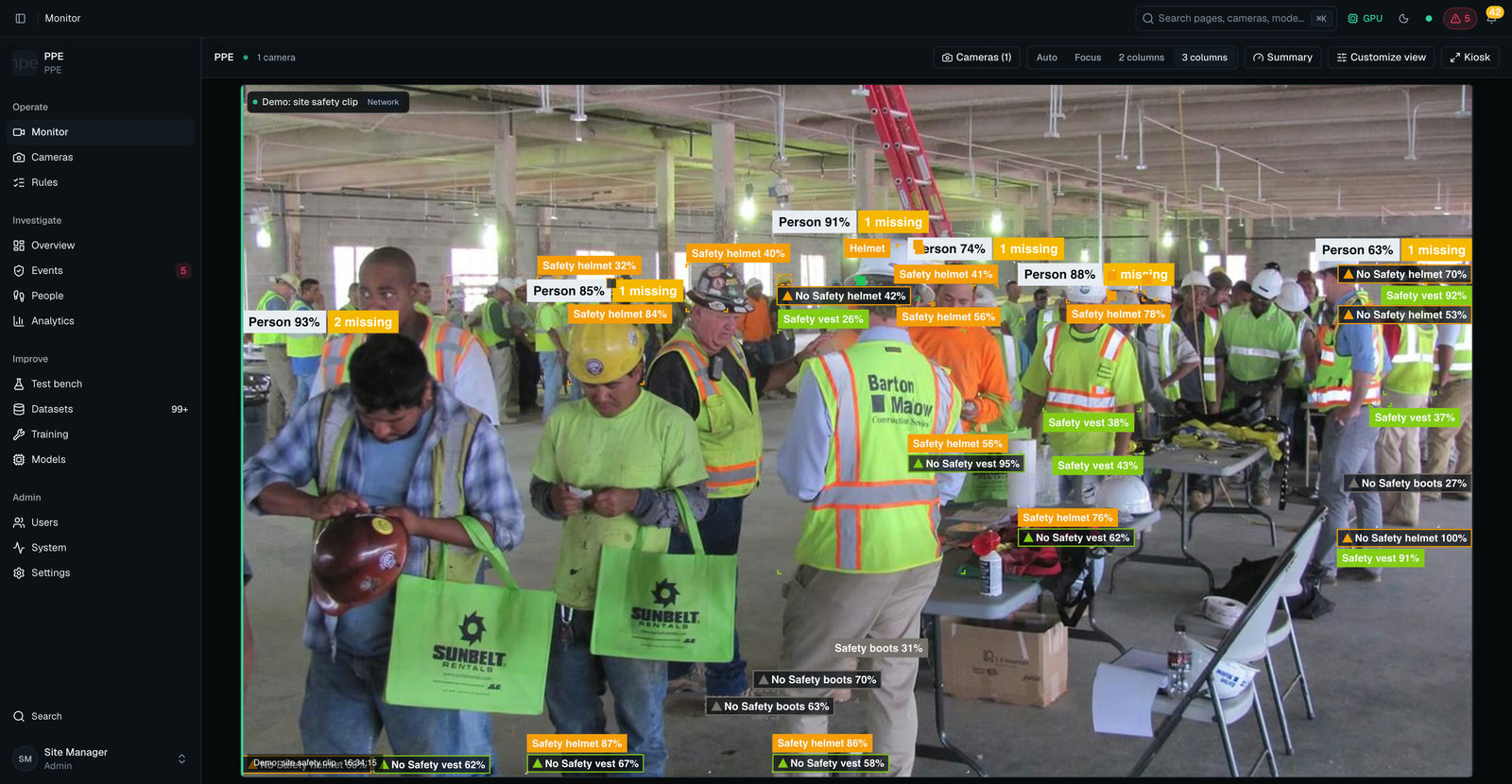
- Open Monitor. Each tile is a camera with its live picture.
- When a camera needs a person, Auto moves it to the front. Press Resume Auto if you paused it.
- Click a tile to bring it forward. Press Pin to keep a camera where it is.
- Use Boxes to show or hide the boxes on people and equipment.
- Security cameras label each person with a name, Unknown or Possible match. A hidden helmet shows Can't see helmet and pauses the clock.

Version 1.1.834Operator training
Alarms and alerts
- A red banner and a siren mean an alarm. Click the page once at the start of your shift so the browser allows sound.
- A kind of alert set to Pop-up with sound in Notification settings plays a tone: urgent for a high violation, soft for the rest.
- Press Acknowledge to say "seen, I have it". Press Undo if it was a mistake.
- Acknowledging is not a review: it does not say whether the alarm was right.
- The bell lists what needs a person. An alert closes by itself when the cause is gone.
- This platform is an early-warning aid. It does not replace the certified fire alarm system.
Version 1.1.834Operator training
Events and review
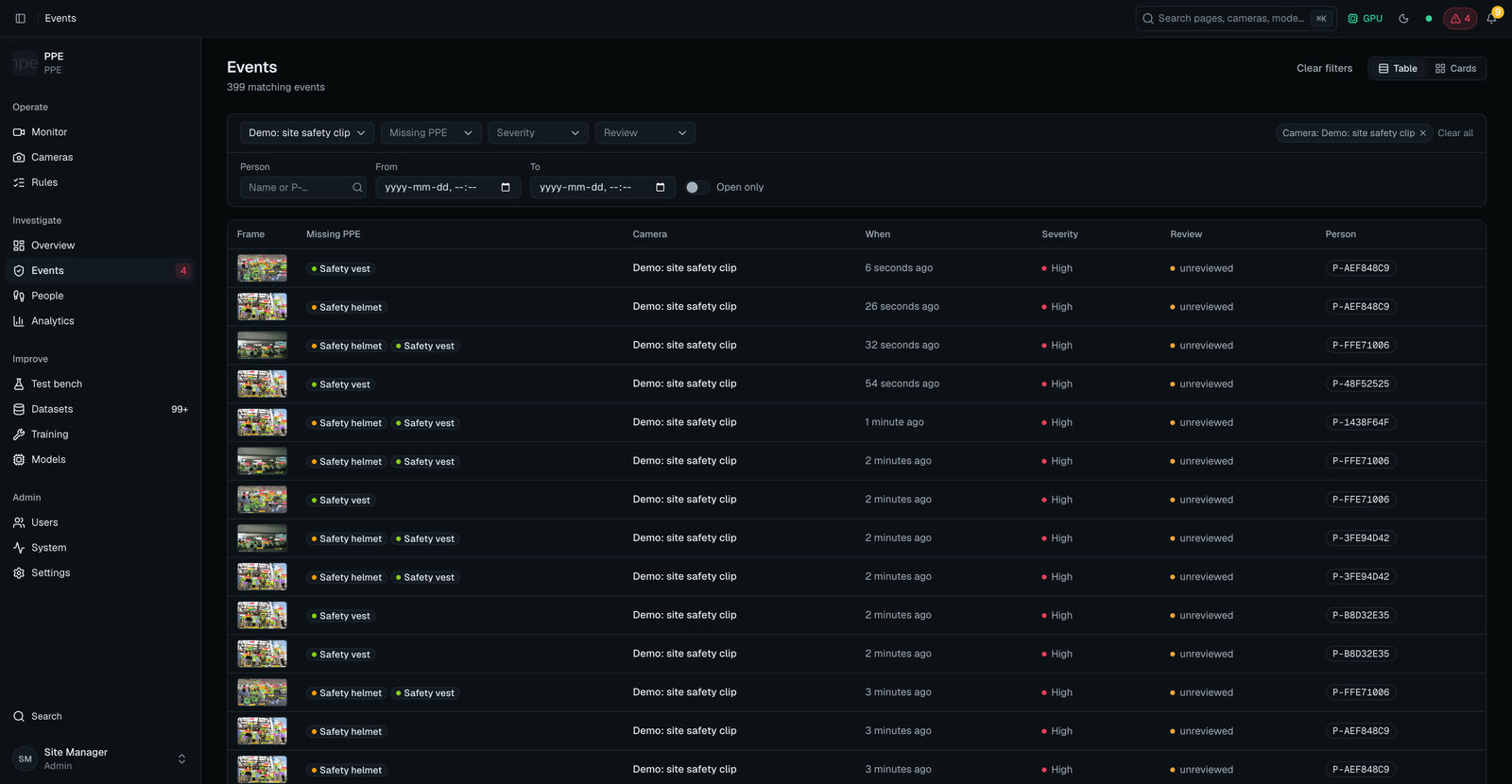
- Open Events. The newest are first.
- Open an event to see its picture, the clip and what was missing. The clip plays with its marks, and Open full screen shows the picture or the clip large.
- Press Real violation or Not a violation. This review also trains the models.
- Only roles that may review events see the review buttons.
- Reviewers also answer the weekly Accuracy checks. The answers never change an event.
Version 1.1.834Operator training
Incidents
- An incident is an event that somebody works on. Open Incidents.
- The statuses are New, Acknowledged, In progress, Resolved and False alarm.
- Press Take it to assign it to yourself. When you choose Resolved, write what was done.
- Add a note for the next person, and leave names out of it.
- Use Download to keep the evidence pack.
Version 1.1.834Operator training
Visits
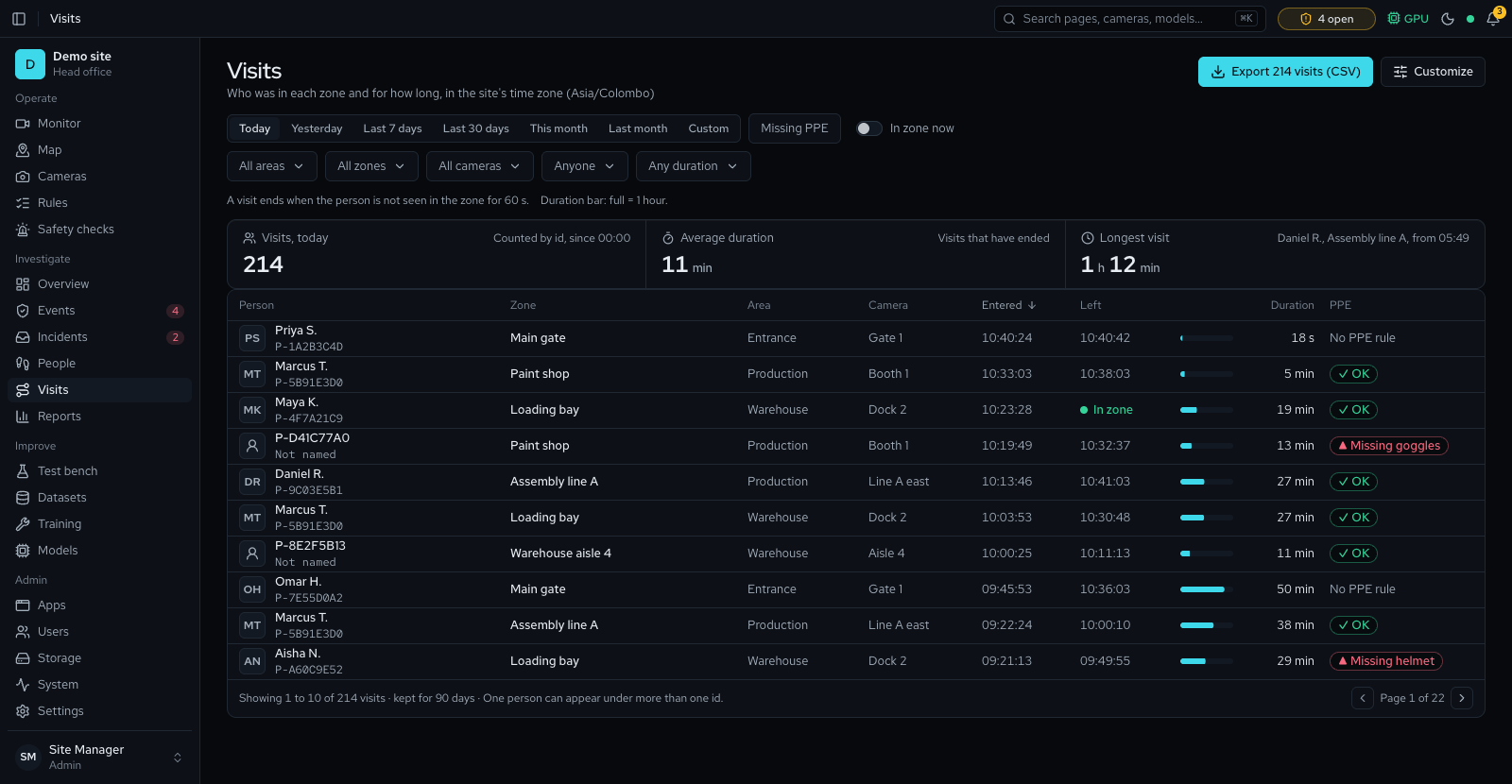
- Visits shows how long each person stayed in each zone.
- Choose a period. Narrow it by area, zone or camera.
- In zone now shows who may still be there. Missing PPE shows visits with a missing item.
- The export button, which ends in "(CSV)", downloads every visit that matches.
- A time that reads at least may have been longer: the camera was not fully watching.
Version 1.1.834Operator training
Playback and exports
- Open Playback, pick a camera and move to the time.
- Choose Clip, MP4 or Snapshot, set the range and export. Recordings appear about a minute late.
- If the footage shows people, give a short, true reason. It is kept in the audit log.
- Press Download within 14 days. Press Verify to prove the files have not changed.
- Export CSV on the events list gives a spreadsheet. Reports holds the totals by period.
Version 1.1.834Operator training
When something looks wrong
- A camera is offline or dark: check power and network, then wait a minute.
- Boxes lag behind people: tell the administrator.
- No alarms for a long time: read the message on the Monitor. If live updates stopped, press the retry button, then reload.
- Still wrong: write down the time, the camera and what you saw, and tell the administrator or support.
- Never send passwords or the server's settings file.
Version 1.1.834Operator training
Try it
- On a training camera, make a test alarm and Acknowledge it. Then press Undo.
- Open two events and review them: mark one Real violation and one Not a violation.
- Open Events, set a filter and press Export CSV.
- Ask the trainer to check each result before you move on.
Version 1.1.834Operator training
Who to call
Priority 1
Alarms are not raised or not sent, or the whole platform is down.
Contact: ____
Priority 2
A camera or a check does not work, and the site has a workaround.
Contact: ____
Priority 3
A fault with an easy workaround, or a wrong figure in a report.
Contact: ____
Priority 4
A question or a change request.
Contact: ____
The response times and contacts are in the support guide. Send the time, the camera and what you saw.
Version 1.1.834Operator training